Before and after report
Hypertune technology page
15 October 2026 · hypertune.gg/technology
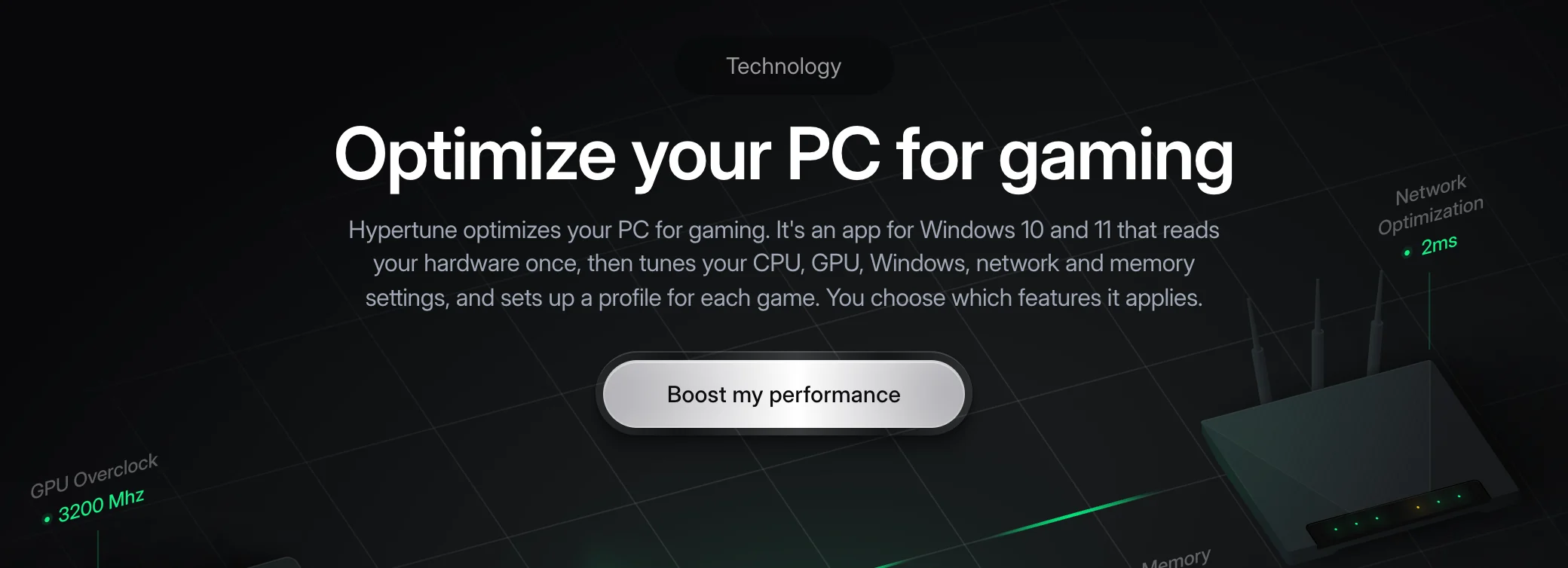
- The page now targets optimize PC for gaming: new title, meta description, H1 and intro.
- The tabs, headings and FAQ use Hypertune's six feature names in product order, and Memory Optimizations gets its own section.
- Short new lines name the real settings and games, every image gets a descriptive alt text, and the FAQ gains one new question and a link to the trust page.
Title tag, meta description and H1
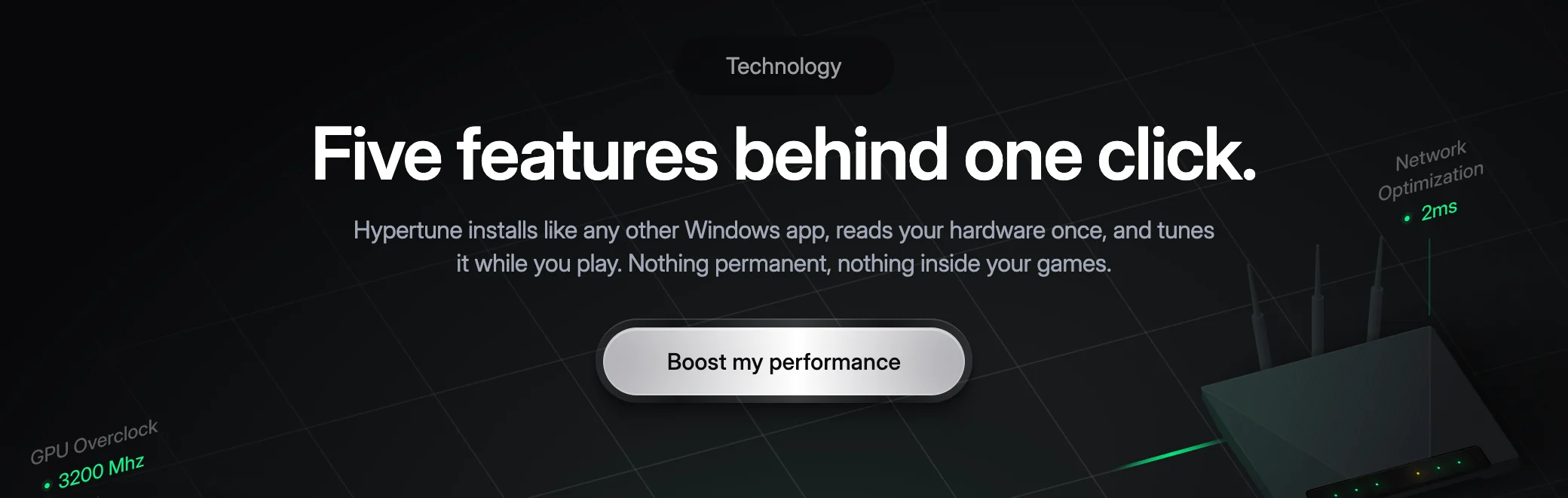
Live now: Five features behind one click | Hypertune
Live now: Hypertune installs like any other Windows app, reads your hardware once, and tunes it while you play. Nothing permanent, nothing inside your games.
Live now: Five features behind one click.
For Austin to confirm before this goes live
- Windows 10 and 11 as the platform line in the intro. Is there a minimum build?
- Memory: "does not write BIOS memory profiles such as XMP, EXPO or DOCP".
- Windows Debloating labels: Game Bar, Telemetry, NVIDIA ShadowPlay, Hardware Acceleration. The live image also shows a Windows Update switch. Does Hypertune turn off automatic Windows Updates?
- Network setting names: Disable Nagle's Algorithm, Protocol Bindings, Adapter Power Management, Adapter Advanced Tuning.
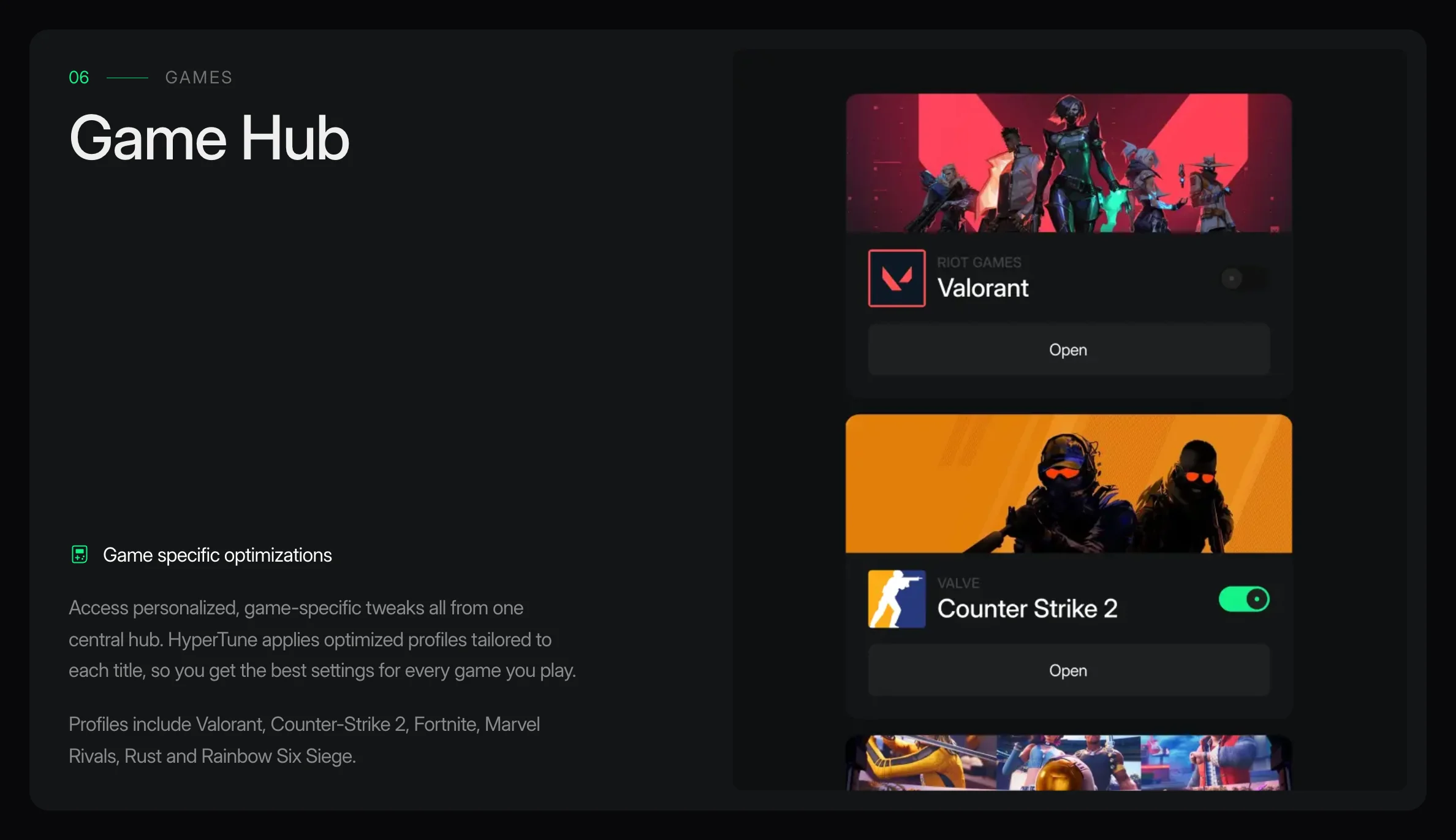
- Game Hub list: Valorant, Counter-Strike 2, Fortnite, Marvel Rivals, Rust, Rainbow Six Siege (8 Oct screenshot).
- Restore path labels: Restore tab, most recent restore point, Restore.
- "Nothing permanent" is out of the intro and the meta description until the reversibility question is answered (kernel drivers after uninstall, Windows Update). Put it back if it's true.
- Kept as they are, but still against the claims rules: "100% anti-cheat safe and used by Tier-1 pros" (kept by Austin, 10 Oct), "10,000+ gamers", and "0.1% lows" in the high-end PC answer.
For the developer
- The five feature headings are H1 tags on the live page, so the page has six H1s. Make them H2s so the hero H1 is the only one (C1, audit 11.1).
- Add one FAQPage script that lists only this page's questions, with text that matches what's on screen (C29).
Sections not listed below (the shared Join cards and the footer) don't change. Screenshots are from the live page and the mockup at 1440px wide, 15 October. Click a screenshot to open it full size.
Hero
New text
Why: The H1 now carries the primary keyword optimize PC for gaming (US 350 / global 600 a month, difficulty 0; Ahrefs 5 Oct), from the C1 table and agreed by Bobby on 7 Oct. "Five features" stops being true once Memory is listed (there are six). The intro also uses optimize pc (Search Console: 291 impressions, position 9.9, now landing on the homepage), states the platform once per the 12 Oct call, and names all six features in product order (lesson 8). It drops "nothing inside your games" because the FAQ answers it (lesson 2), and drops "Nothing permanent" until Austin confirms it.
Feature tabs


New text
Why: The five tabs (Processor, Graphics, System, Network, Games) become Hypertune's own feature names in product order (lesson 8). Memory Optimizations is added as 05, so Game Hub moves to 06. That gives the page six anchors that match what people search for.
The highlighted tab in the after shot is just scroll state. The tab bar works the same as on the live page.
CPU Overclocking
New text
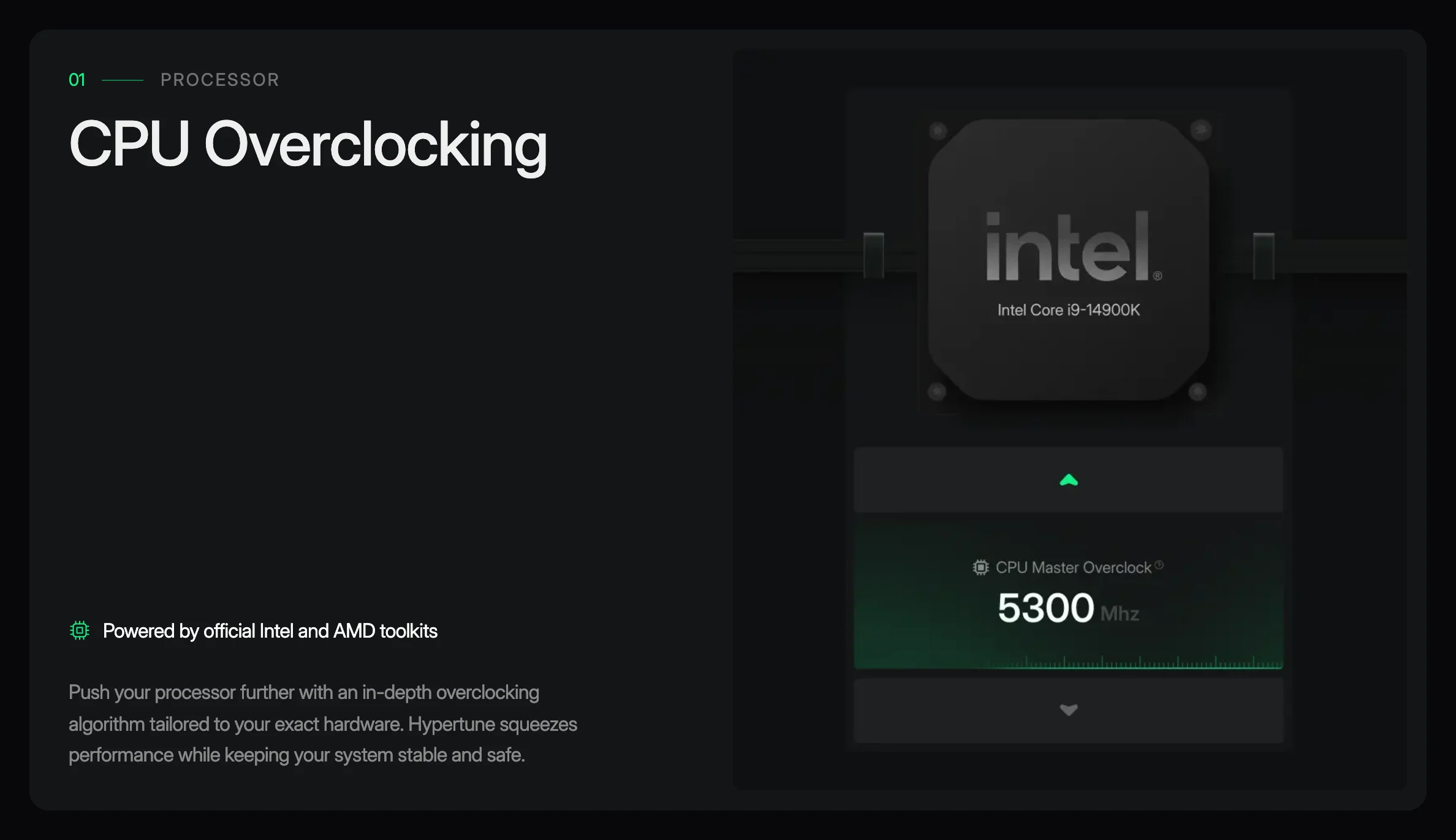
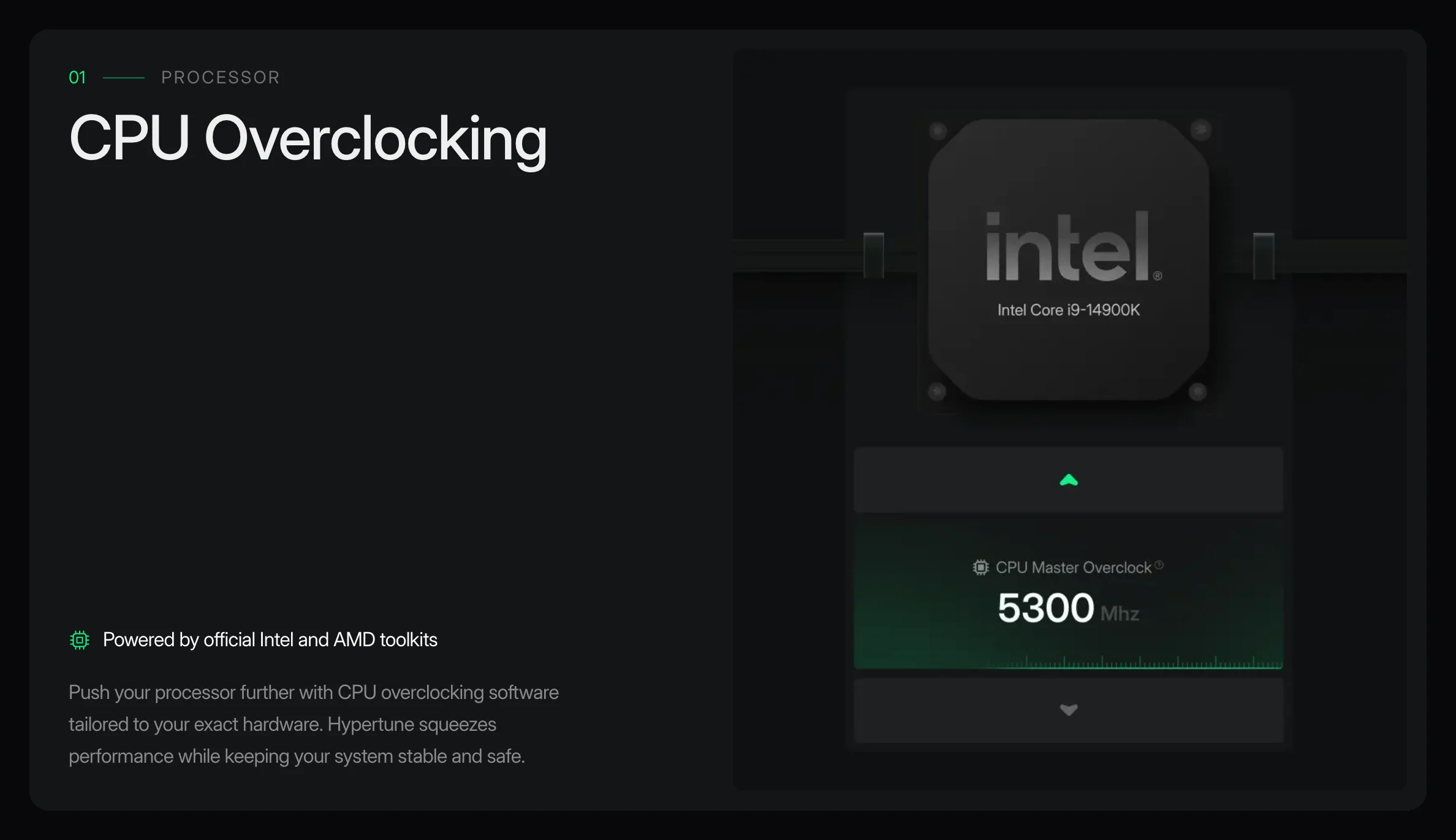
Why: Only "an in-depth overclocking algorithm" changes, to "CPU overclocking software". Targets cpu overclocking software (US 350 / global 600, difficulty 21; also a Google Ads search term, 5 to 11 Oct). The old alt text only repeated the heading; the new one says what the image shows.
GPU Overclocking
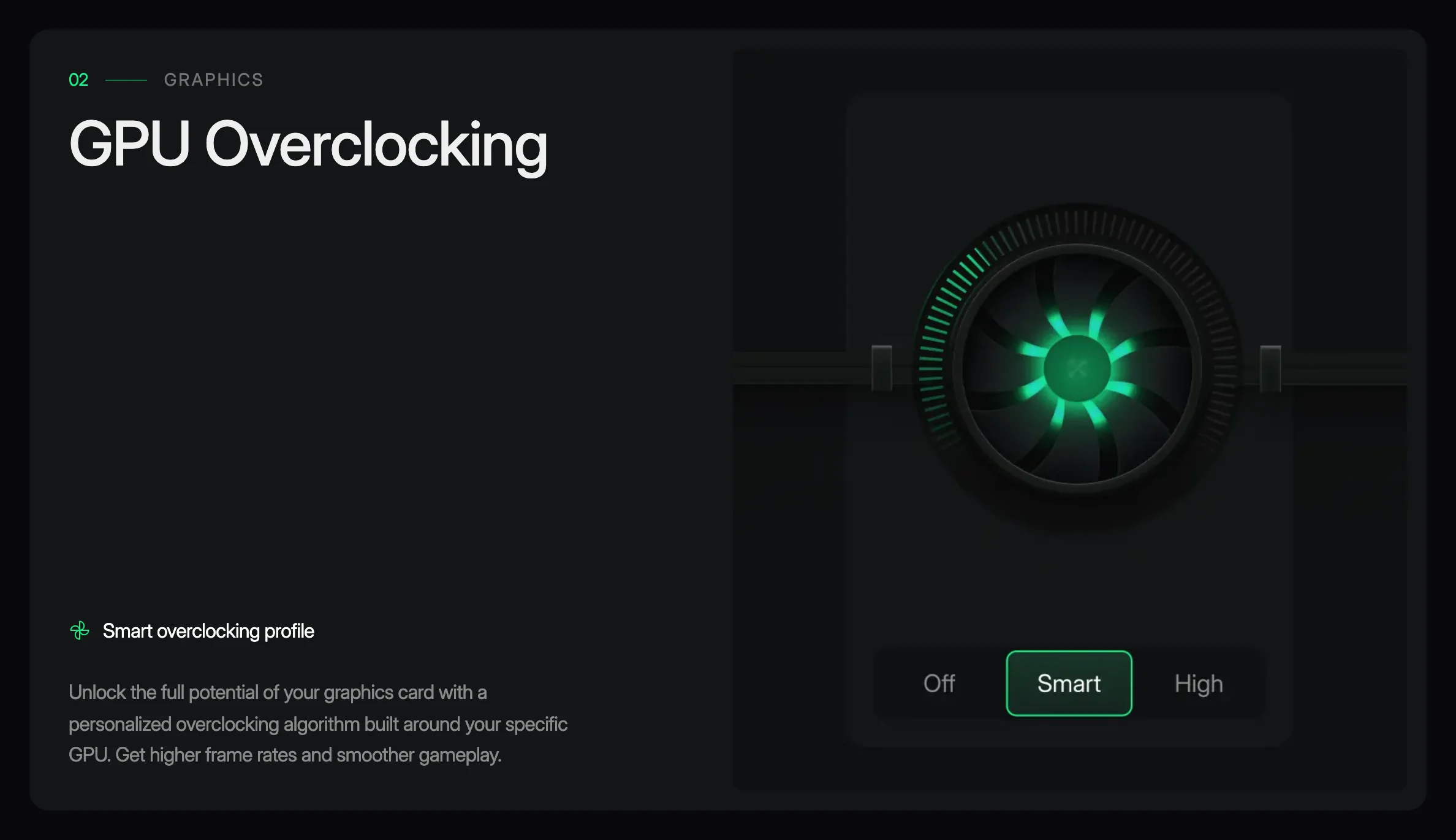
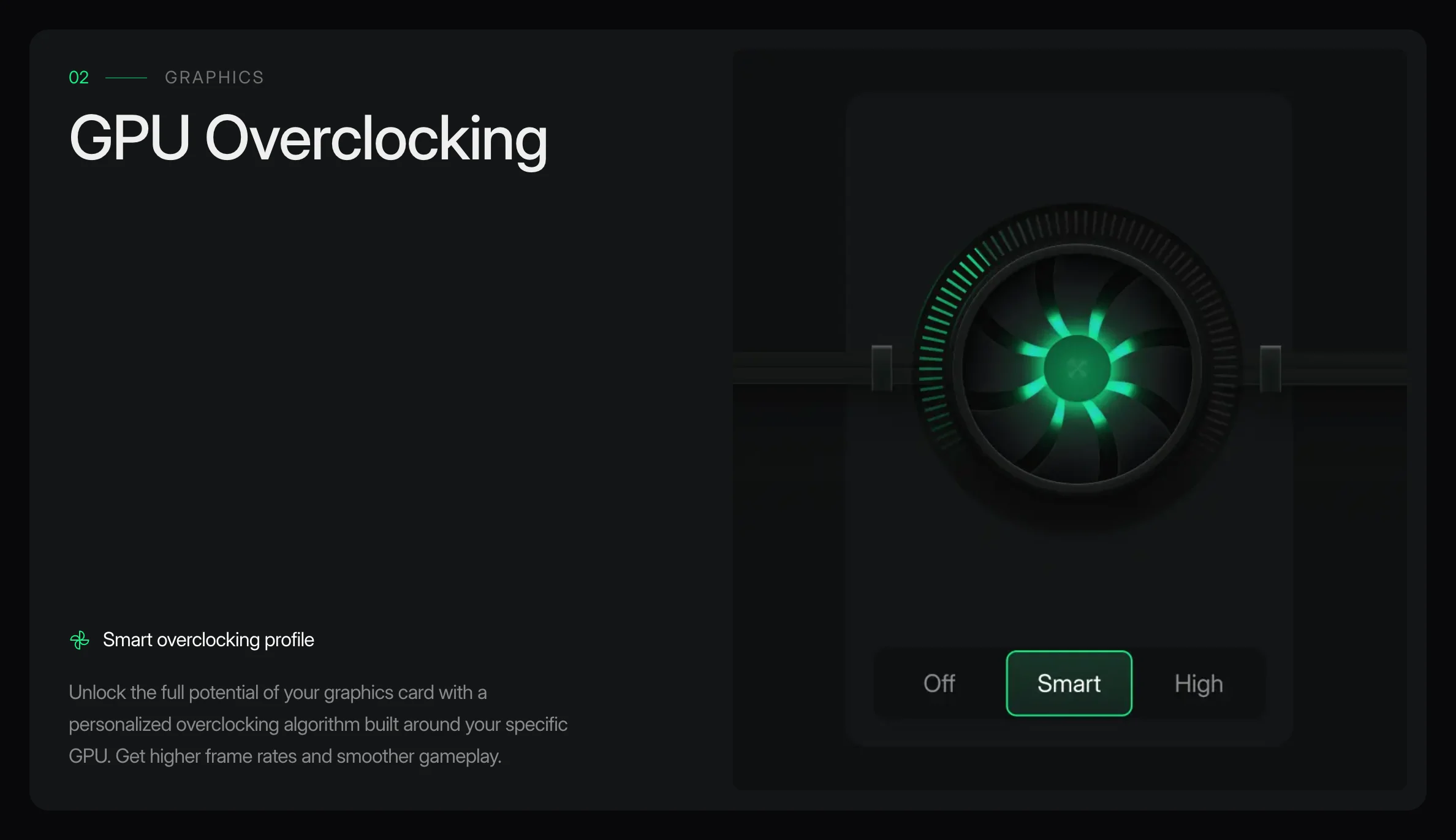
New text
Why: Only the alt text changes, so the two screenshots look the same. The old alt only repeated the heading. The new one describes the screen and supports gpu overclocking software, which already lands on this page in Search Console (5 impressions, position 10.8).
Windows Debloating
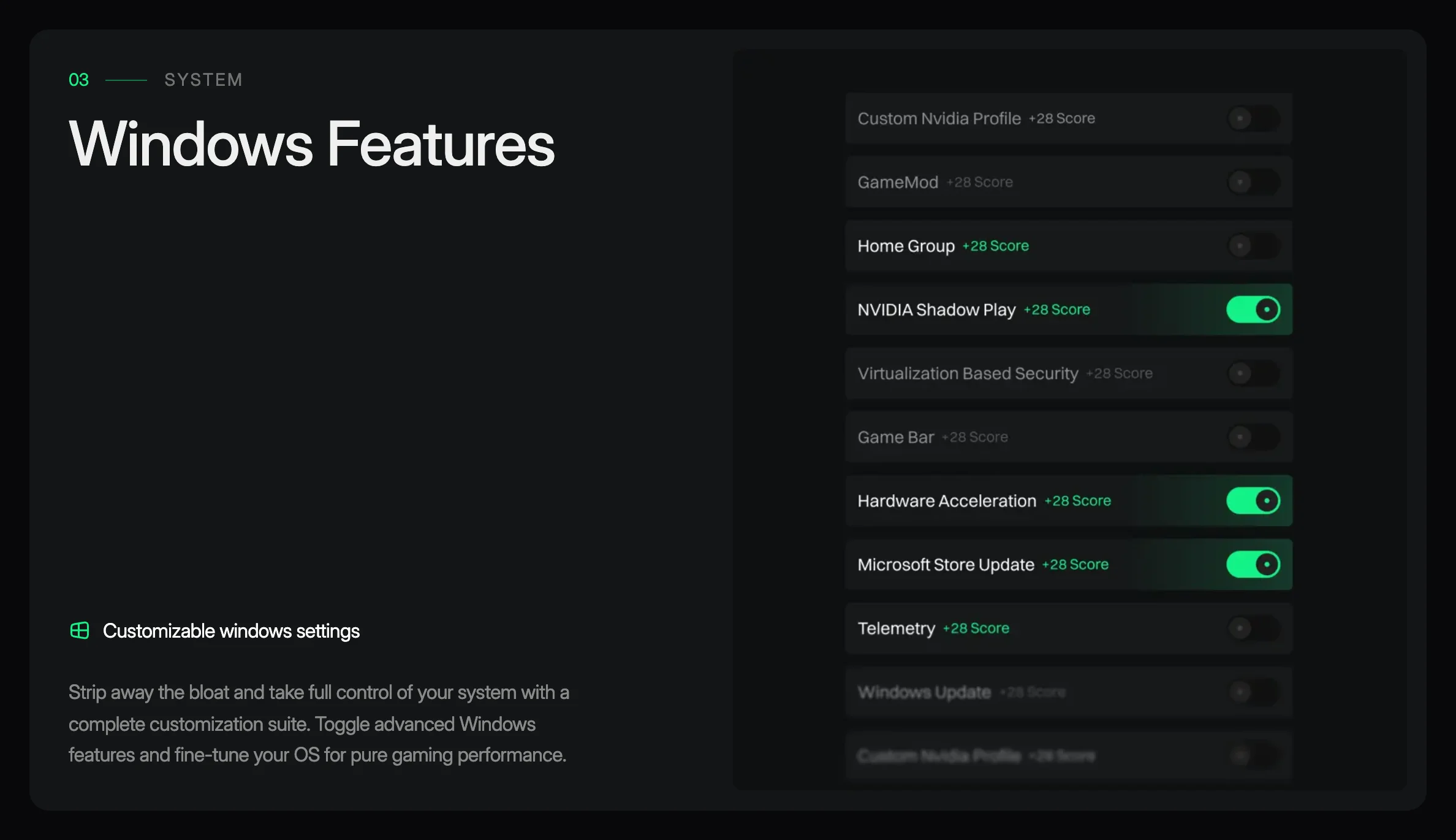
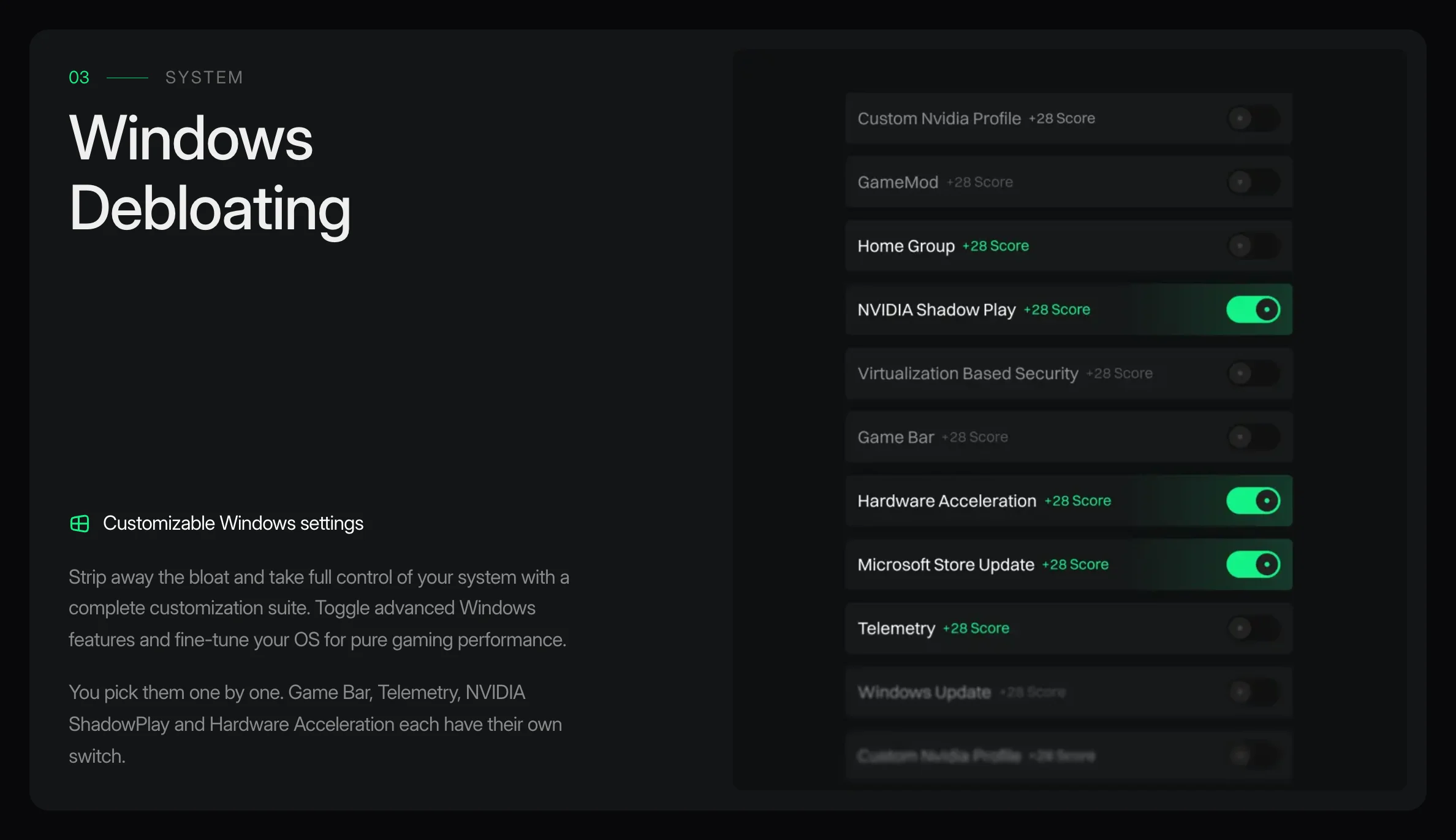
New text
Why: "Windows Features" becomes Hypertune's own feature name (lesson 8), and "windows" gets a capital W. The new paragraph says what "Windows features" means, using labels from the live page's own screenshot (lessons 7 and 10). No keyword volume pulled for "debloat windows" yet.
Network Optimizations
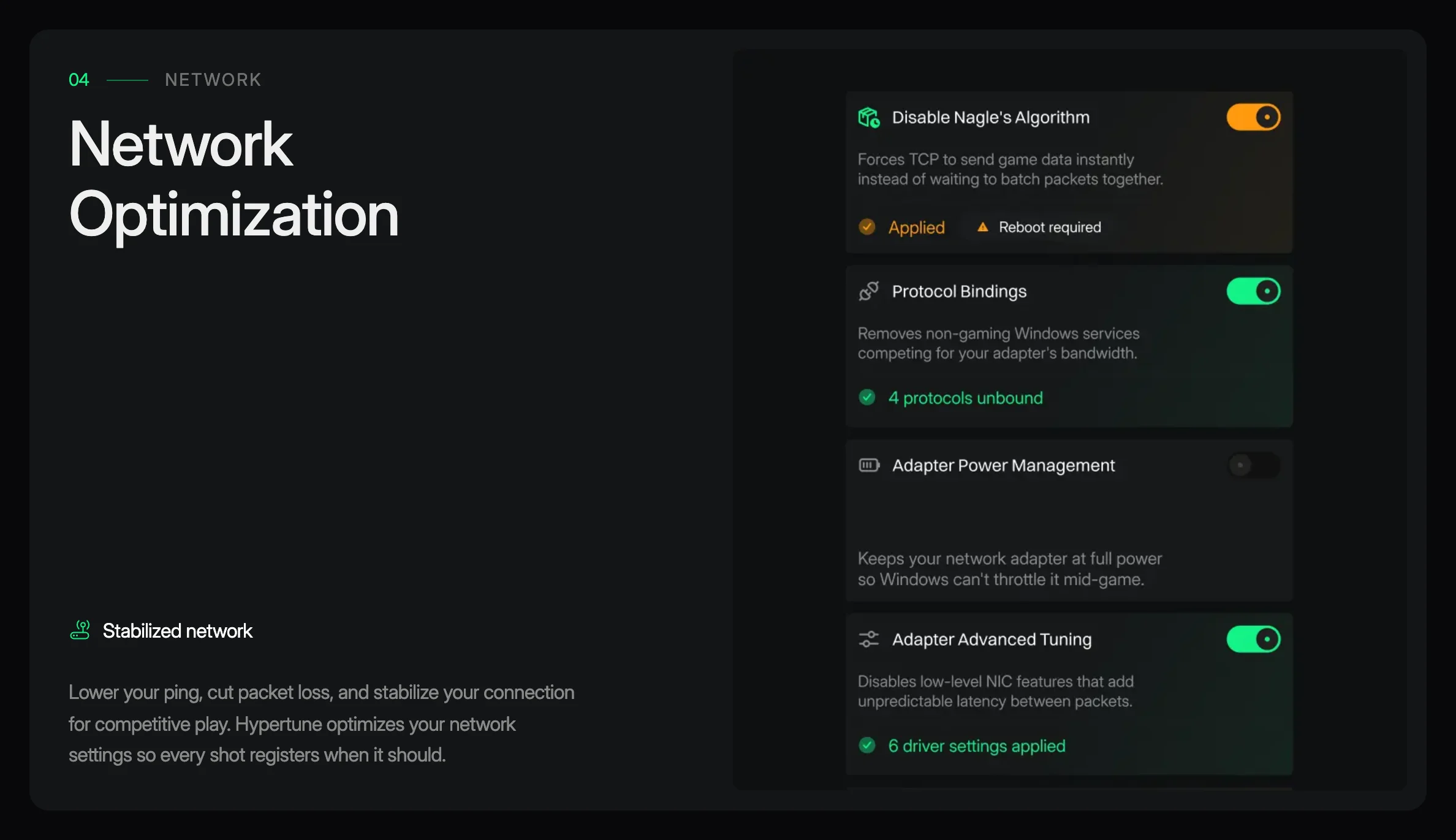
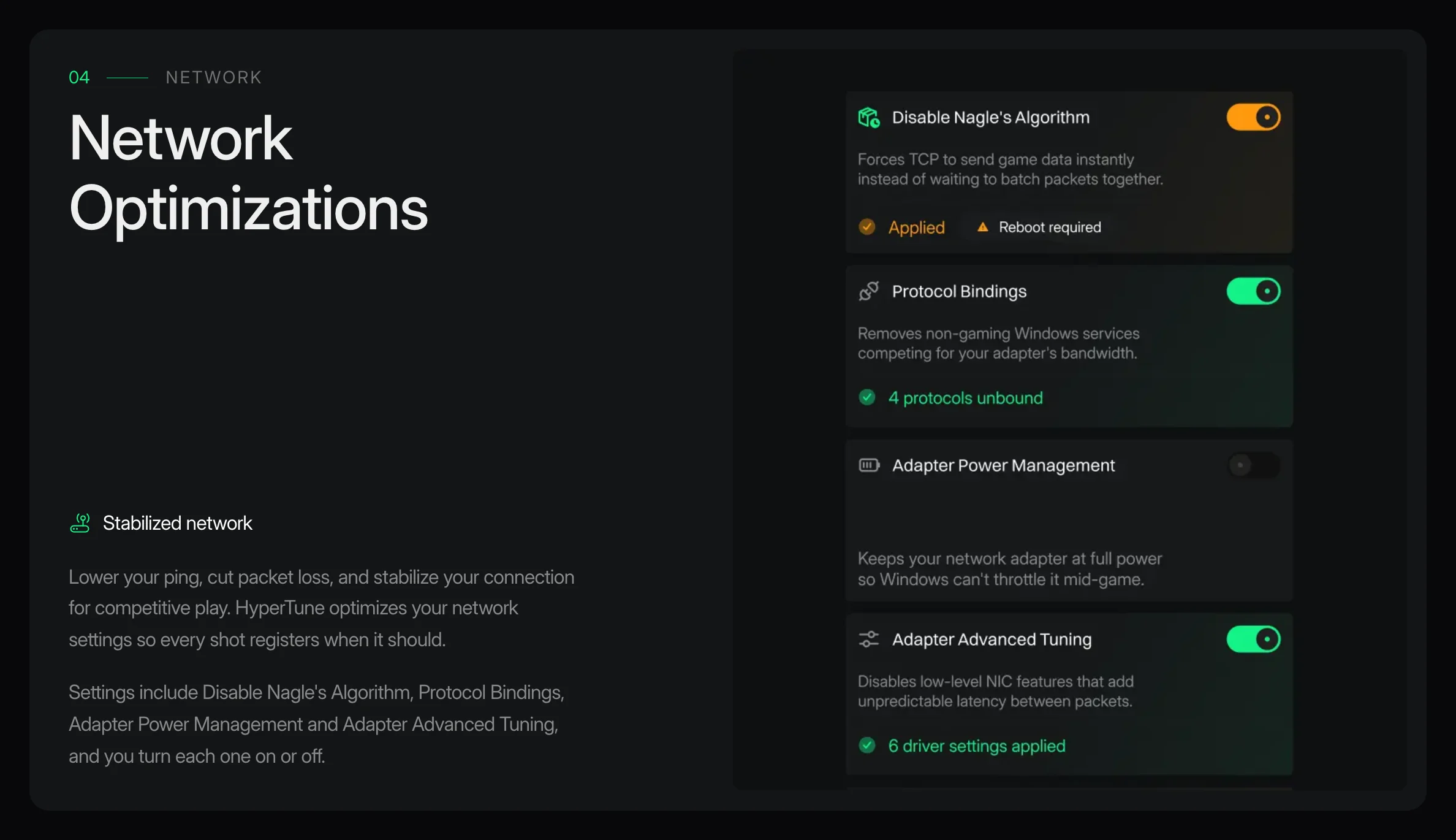
New text
Why: "Network Optimization" becomes the product's name, plural (lesson 8). The new paragraph names the real settings from the live screenshot, so "optimizes your network settings" isn't vague. Supports ping and packet-loss searches; no volume pulled.
Memory Optimizations (new section)
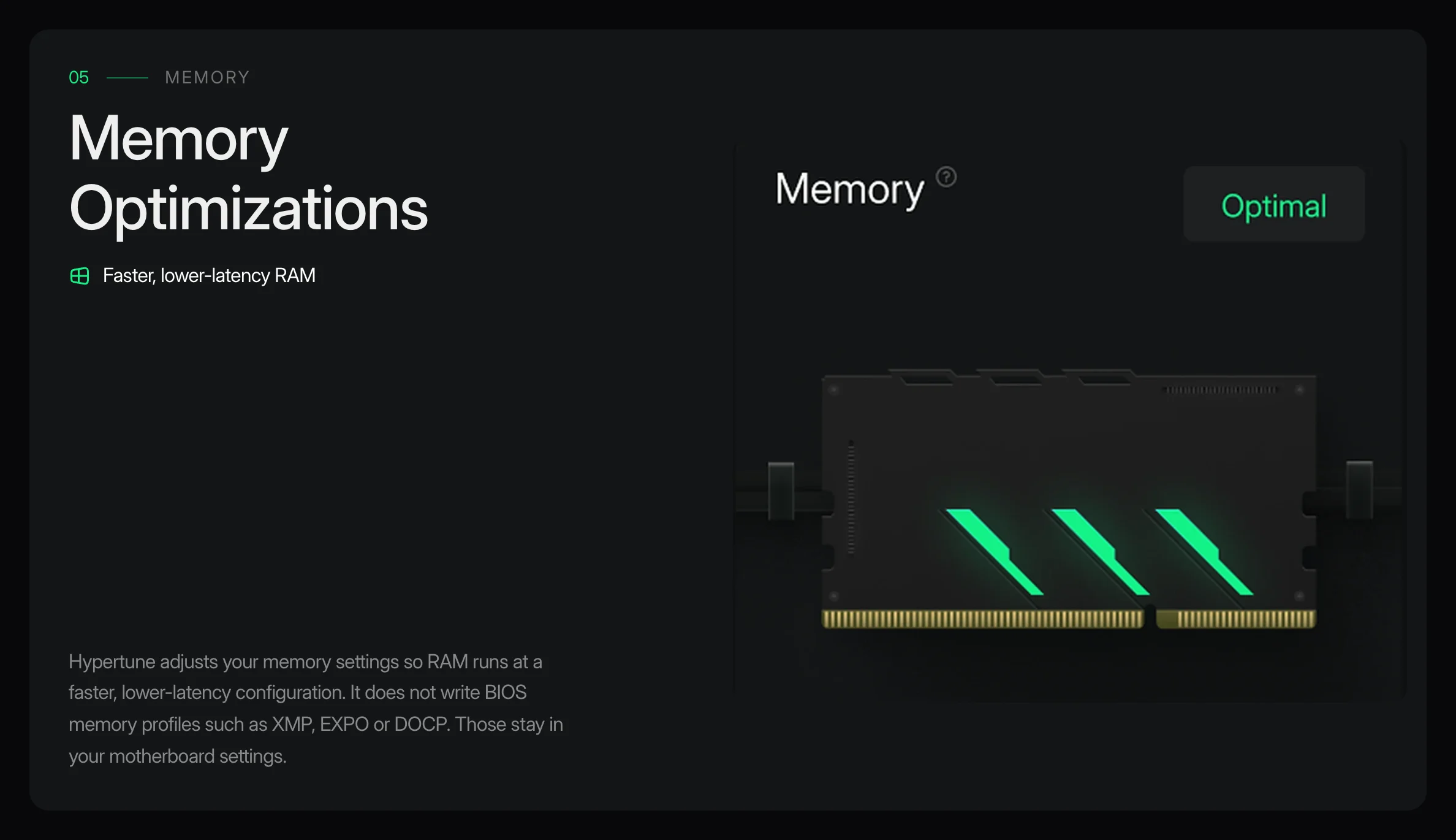
New text
Why: Memory Optimizations is one of Hypertune's six features (lesson 8). The homepage and the "What we change" FAQ already list it, but this page had no section for it. Facts and wording come from the old /what-hypertune-changes page, now merged here. Each feature gets a visual (lesson 9).
The image is the app screenshot the trust page uses (14 Oct). The designer may want a render that matches the other five.
Game Hub
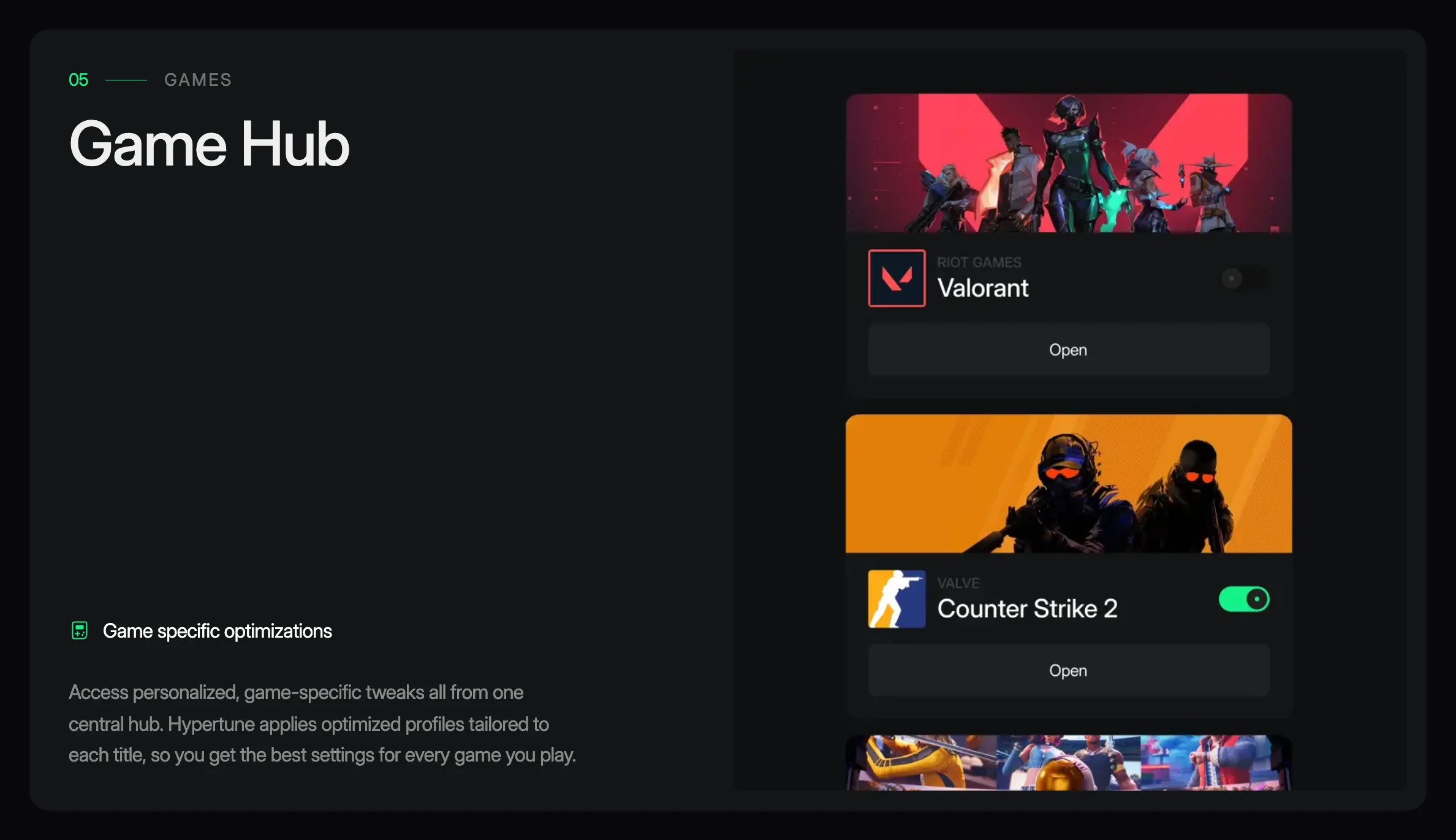
New text
Why: Renumbered from 05 because Memory is now 05. The new line says which games, from the Game Hub screenshot of 8 October. Supports game searches such as fortnite optimizer (Search Console: 43 impressions, position 14.1) and "hypertune rust" (a Google Ads purchase, 5 to 11 Oct). Each name can link to its game page once those go live.
FAQ: new question
New text
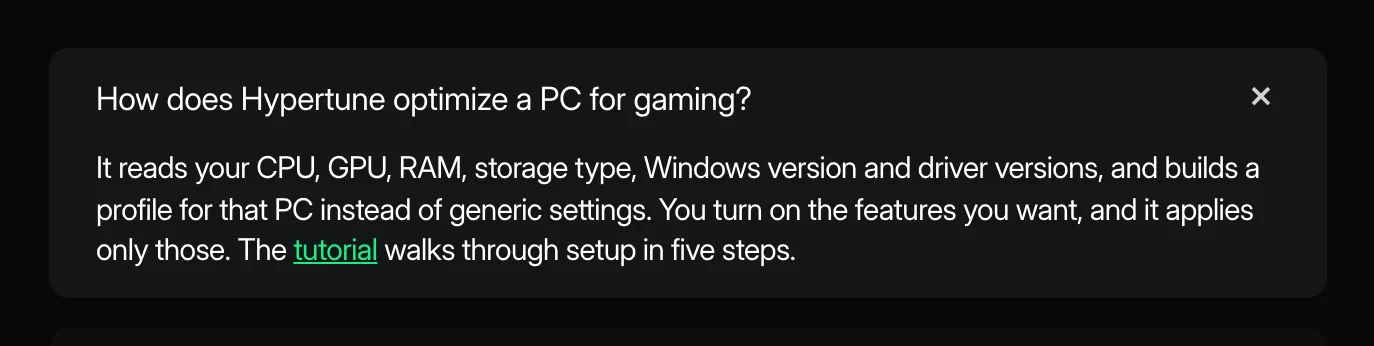
Why: Targets how to optimize pc for gaming (US 2,824 / global 4,600, difficulty 1, traffic potential 200), given to this page on the 12 Oct call (V12). Facts from /what-hypertune-changes and /tutorial. Bobby: the 14 Oct calendar still gives this keyword to the gaming guide (C3), so pick one owner.
Place it first in the FAQ list.
FAQ: Will Hypertune get me banned?
New text
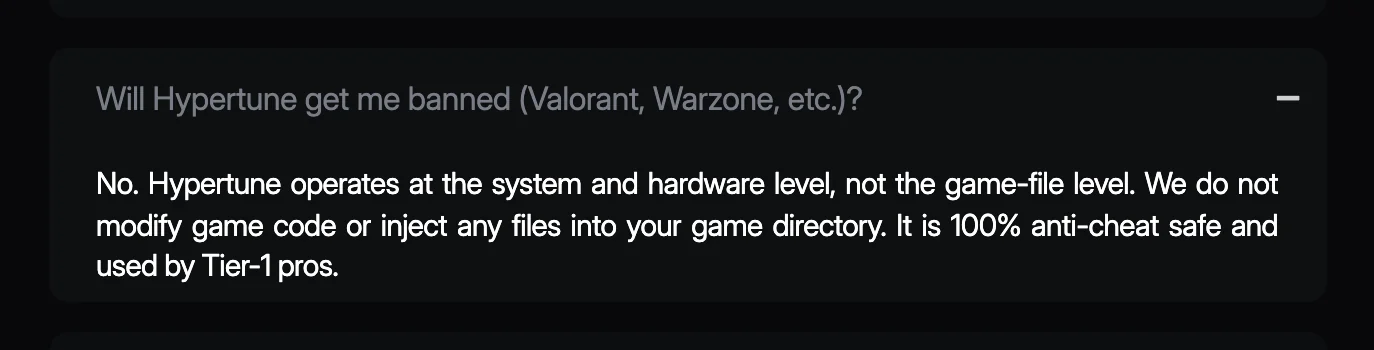
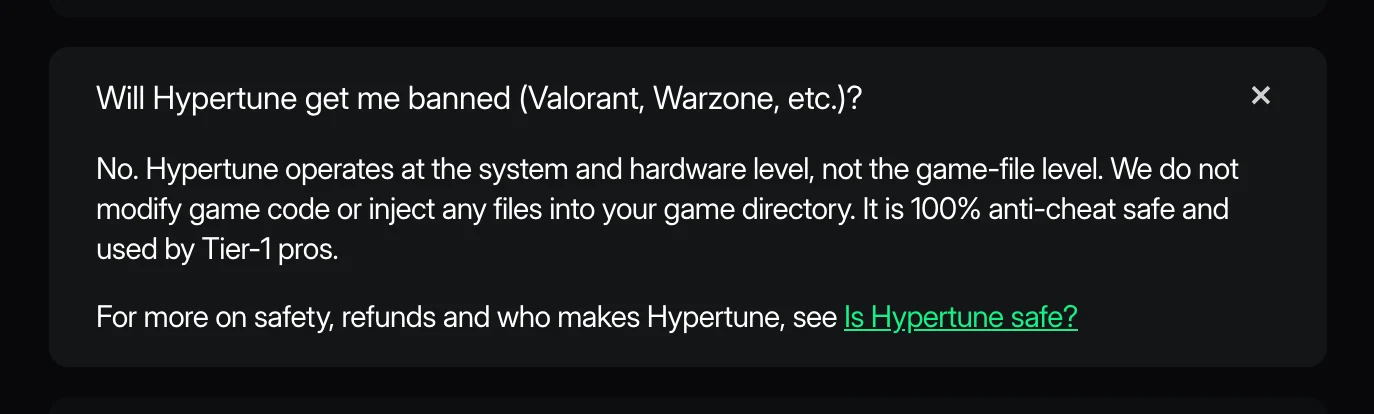
Why: The existing answer stays as it is (Austin, 10 Oct). The new line is the one internal link to the trust page that C2 asks for.
FAQ: What we change
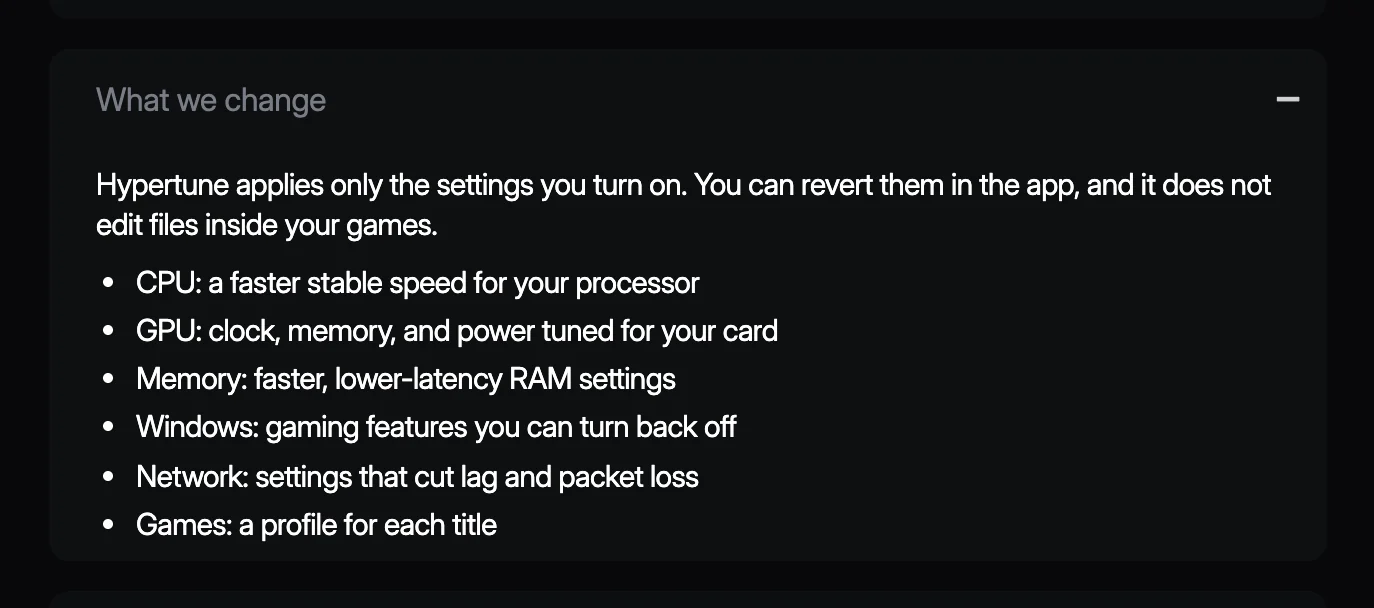
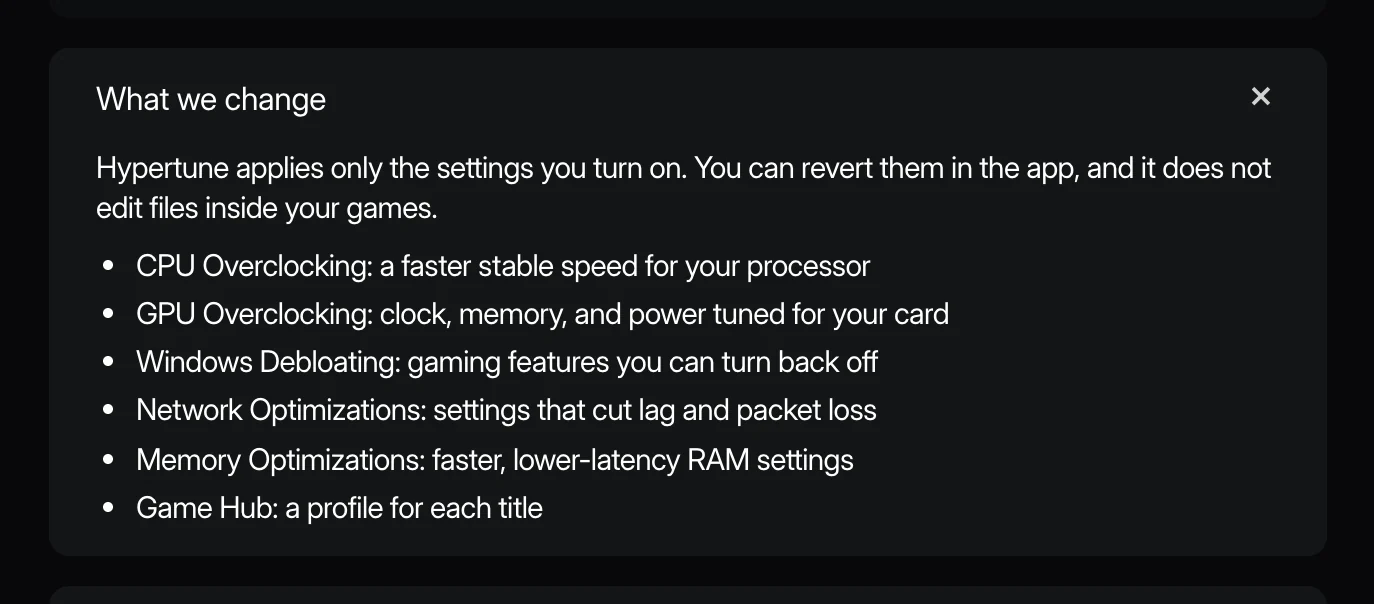
New text
Why: Same six descriptions. The short labels become the product's feature names and follow the product's order, so Memory moves from third to fifth (lesson 8, which was written about this exact list).
FAQ: Uninstalling Hypertune
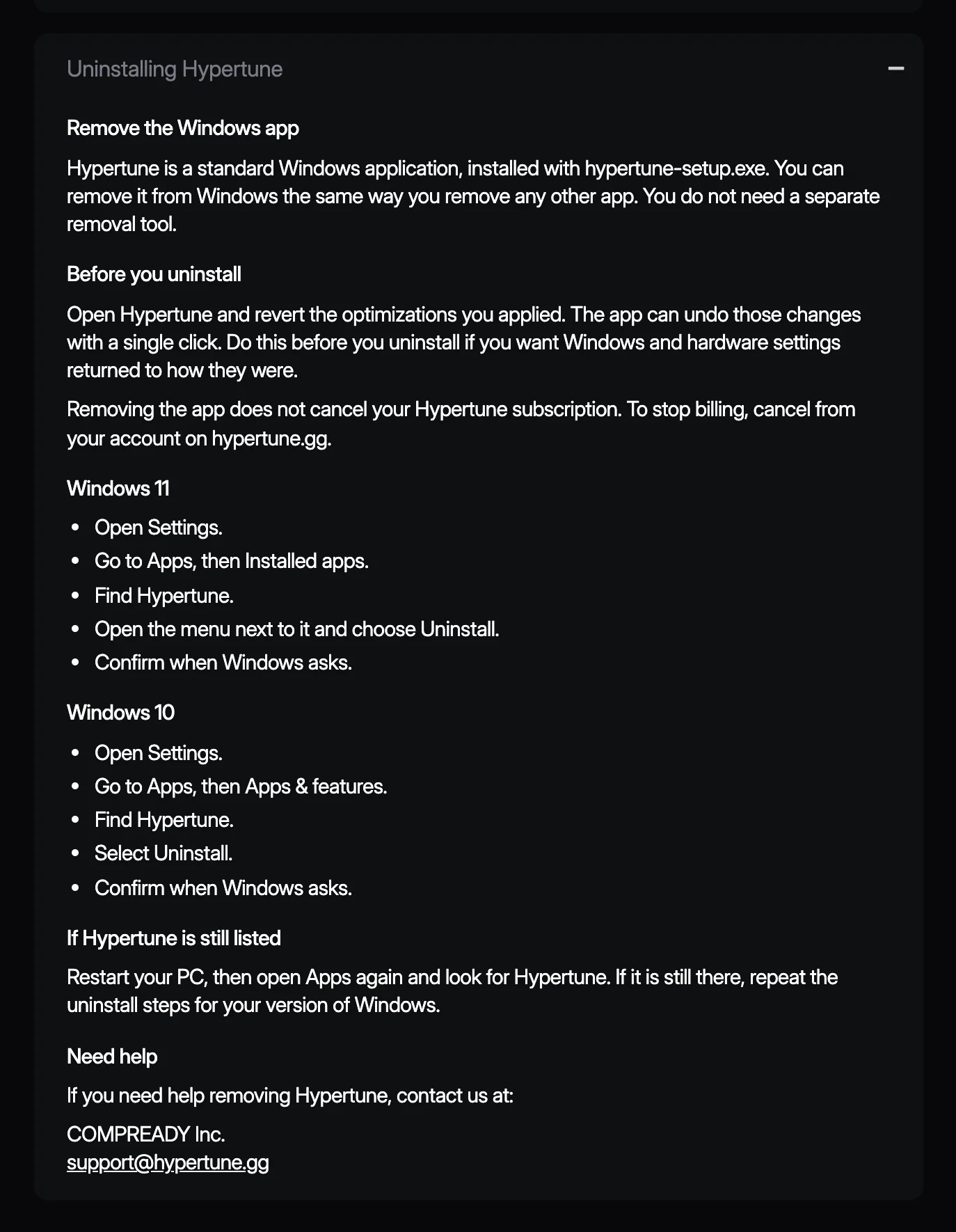
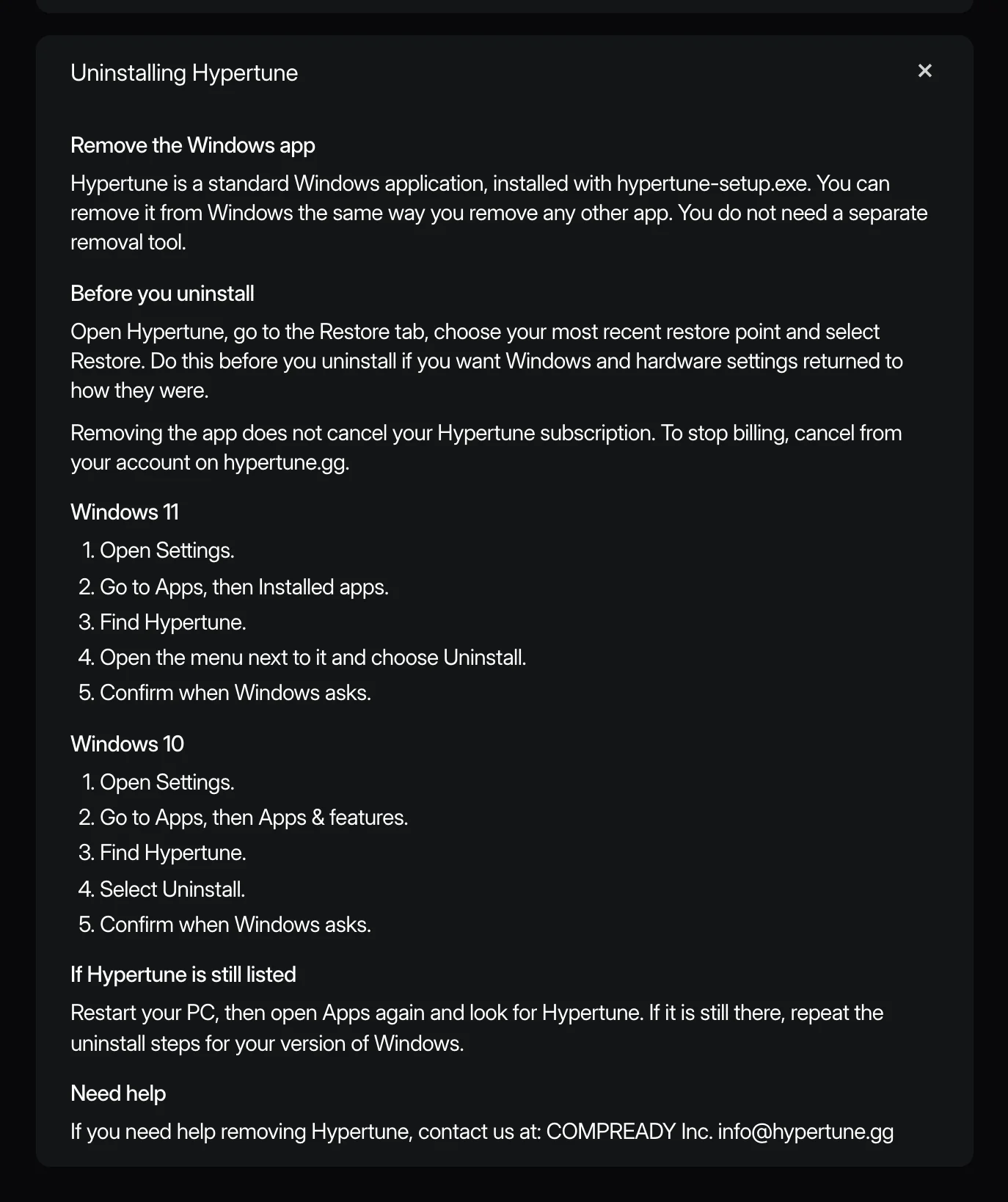
New text
Why: "Revert the optimizations you applied" becomes the real path in the app (Restore tab, most recent restore point, Restore), from Vinny's walkthrough (lesson 7). Same path as the trust page.
Only this paragraph changes. The live page now gives support@hypertune.gg under "Need help"; keep that. The after shot still shows the older info@hypertune.gg.